How to use the Sevden Tech payment portal
The payment portal is where you see your invoices, save a card or bank account, and pay. This guide shows each screen, step by step.
Before you start
The portal address is https://sevdentech.dgportal.net
First time? Look for our email with "Invitation to Sevden Customer Payment Portal" in the subject. Click the link in that email and set your password. After that, sign in as shown in part 1.
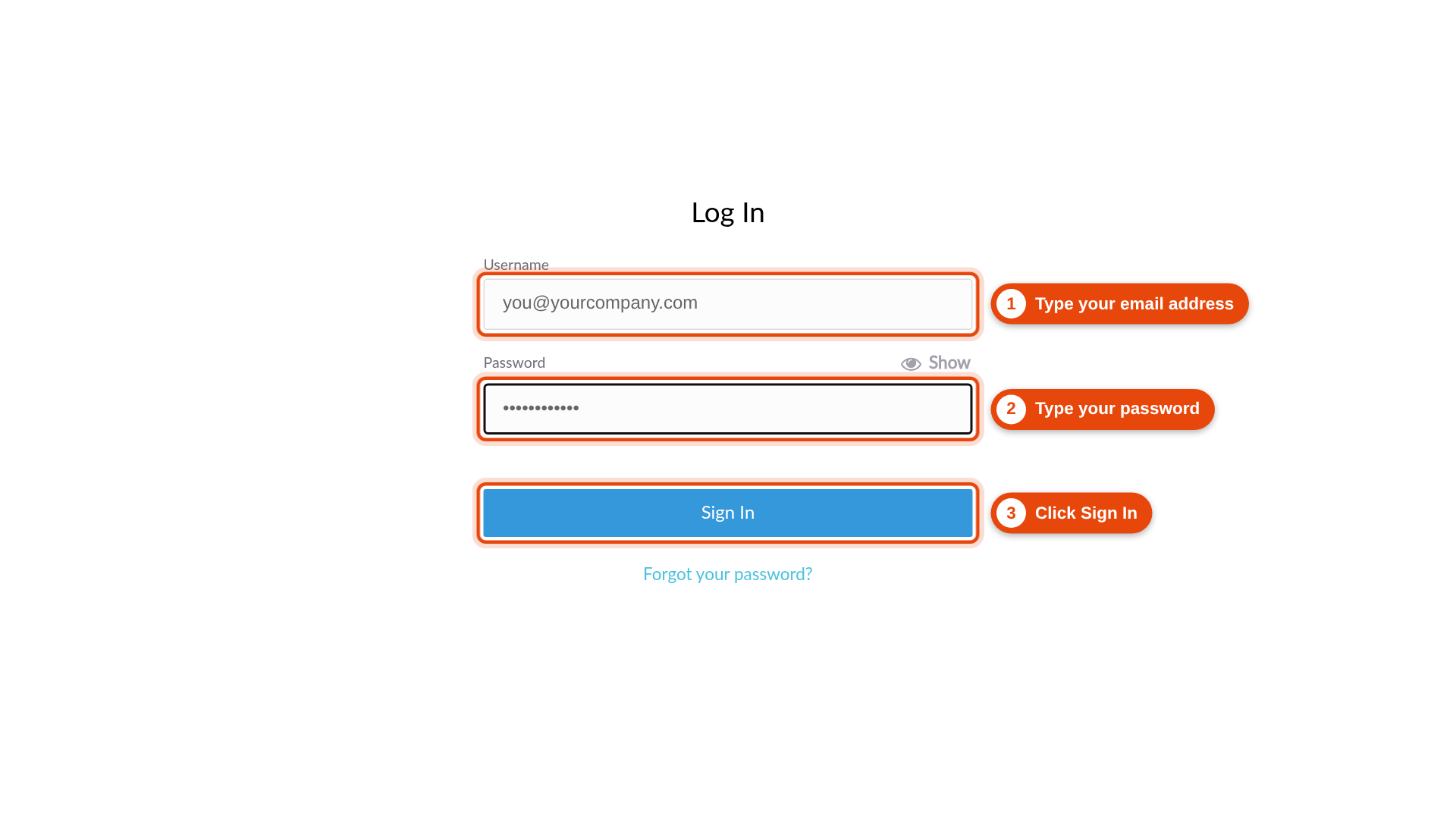
1Sign in
Go to https://sevdentech.dgportal.net
- Type your email address in the Username box.
- Type your password.
- Click Sign In.
2See your invoices
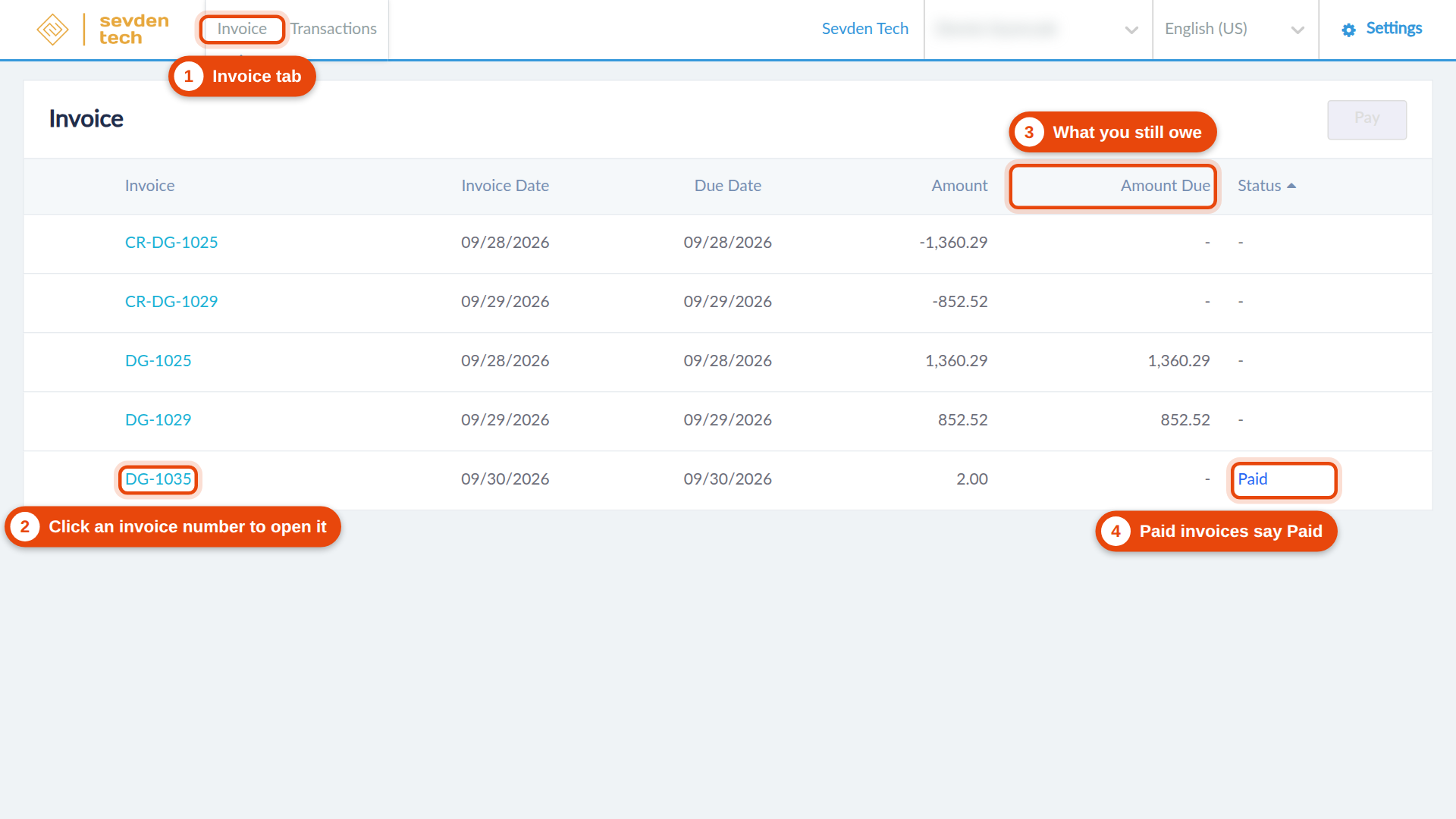
After you sign in, the portal opens on your invoice list.
- The Invoice tab shows all of your invoices.
- Click an invoice number to open that invoice.
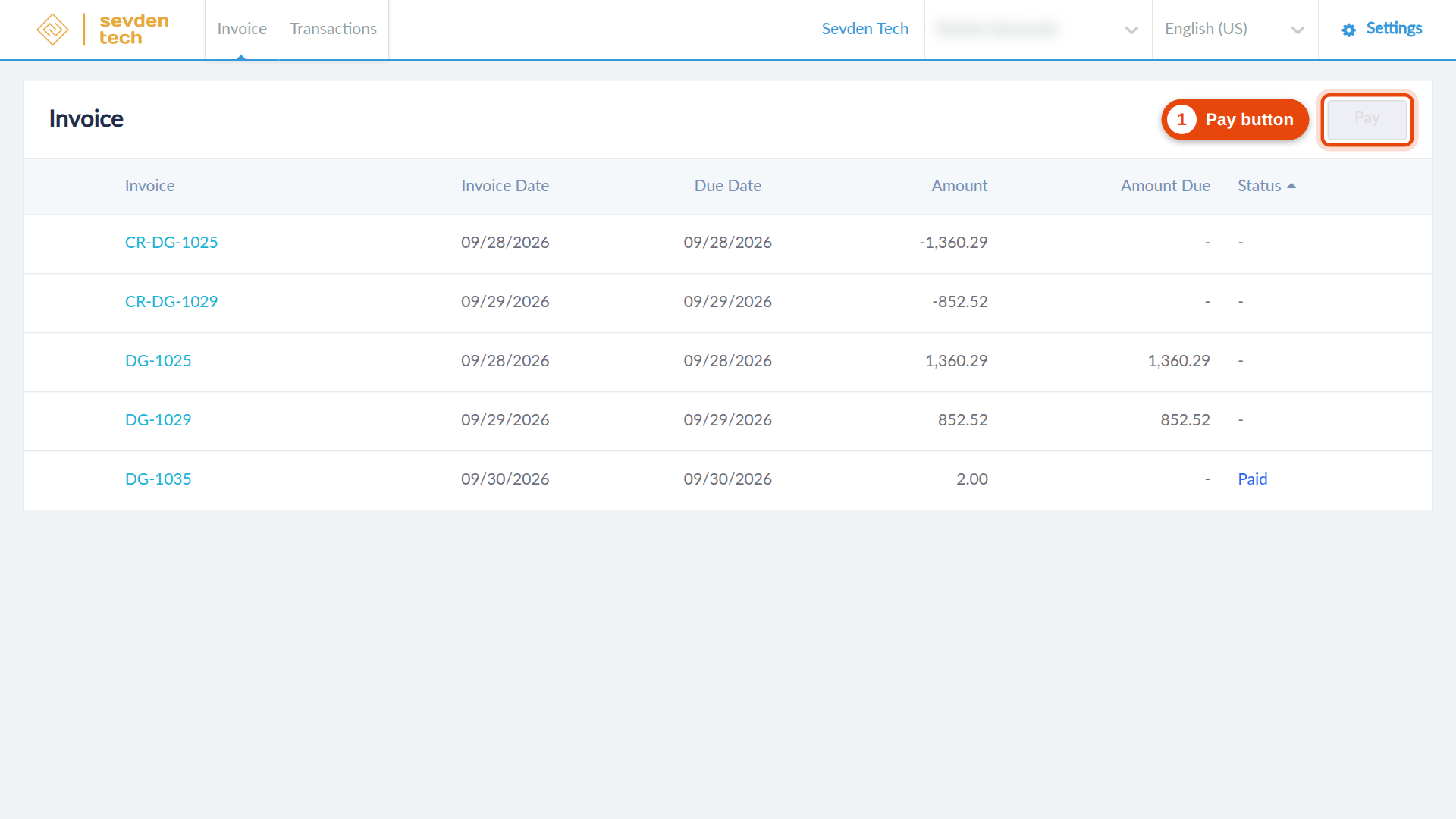
- The Amount Due column shows what you still owe.
- The Status column says Paid when an invoice is paid.
3Open or save an invoice
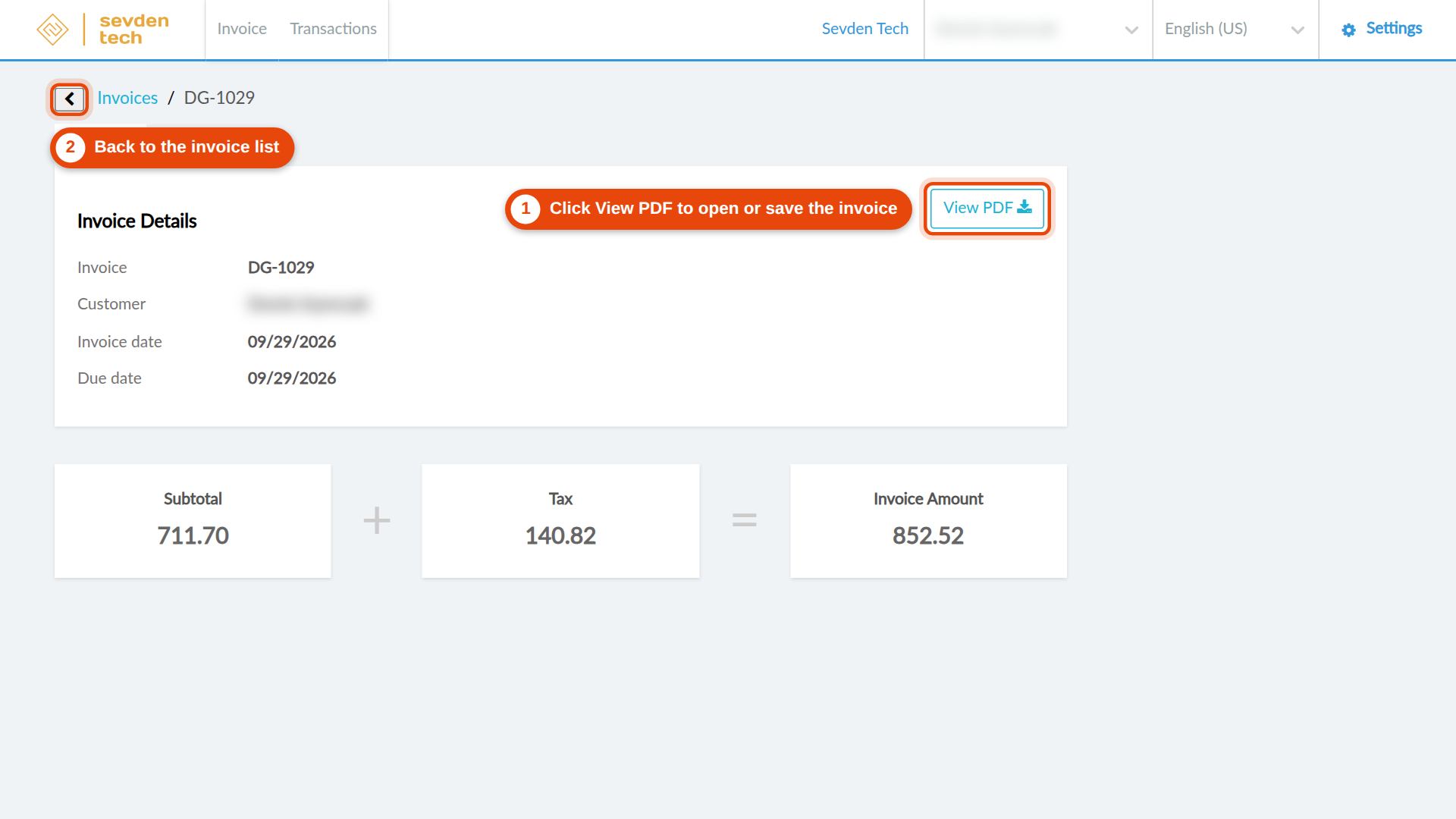
Click an invoice number in the list. The invoice details open.
- Click View PDF. The invoice opens in a new browser tab. You can save or print it from there.
- Click the back arrow to go back to the invoice list.
4Add a card or bank account
You can save a credit or debit card, a bank account, or both.
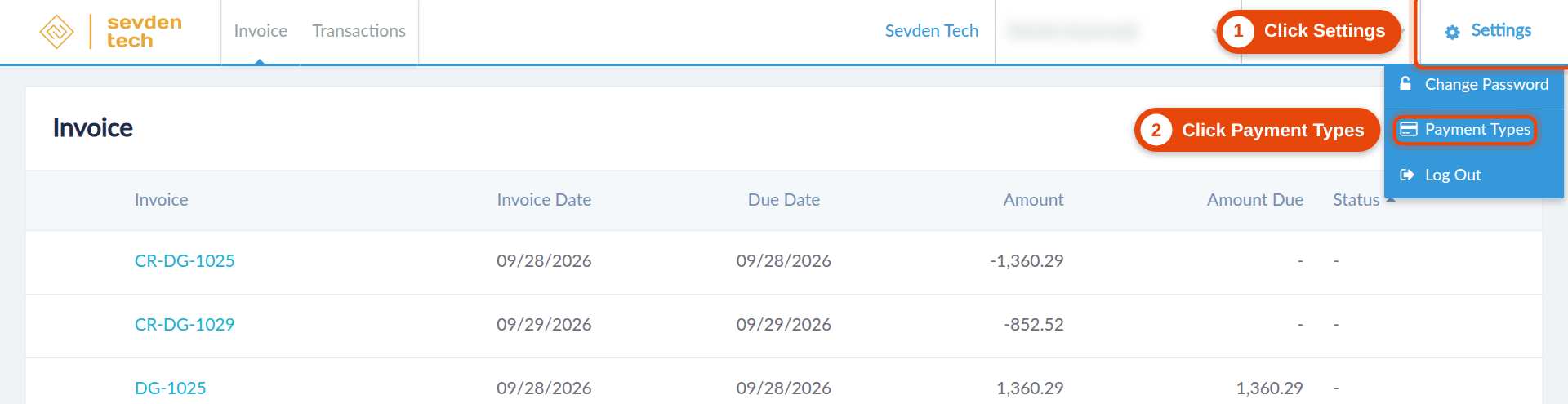
Open the Payment Types screen
- Click Settings at the top right.
- Click Payment Types.
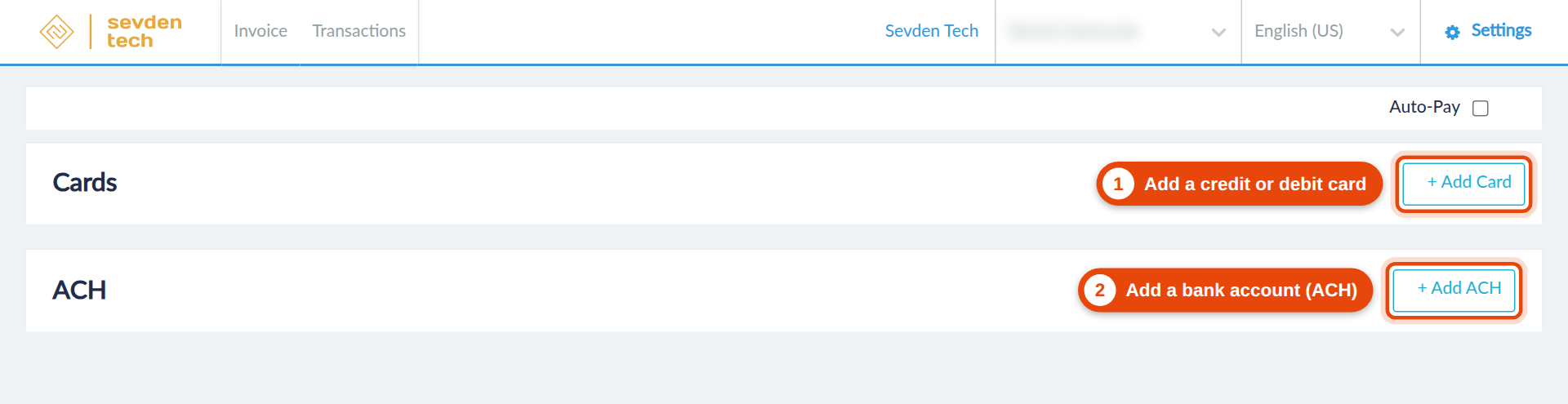
Choose what to add
- Click + Add Card to add a credit or debit card.
- Click + Add ACH to add a bank account.
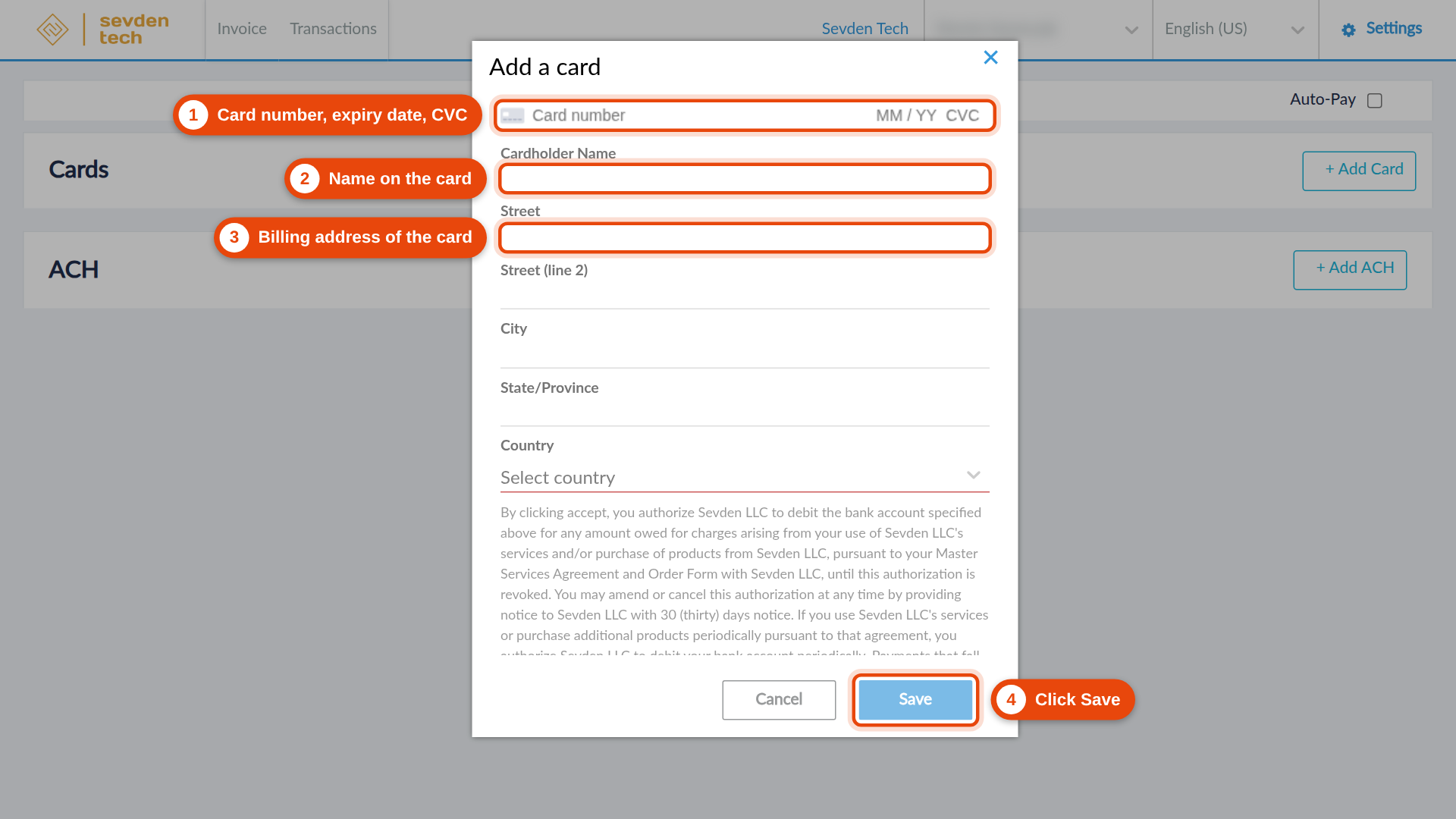
To add a card
- Type the card number, the expiry date and the CVC.
- Type the name on the card.
- Type the billing address of the card. Fill in the street, city, state and country.
- Read the authorization text, then click Save.
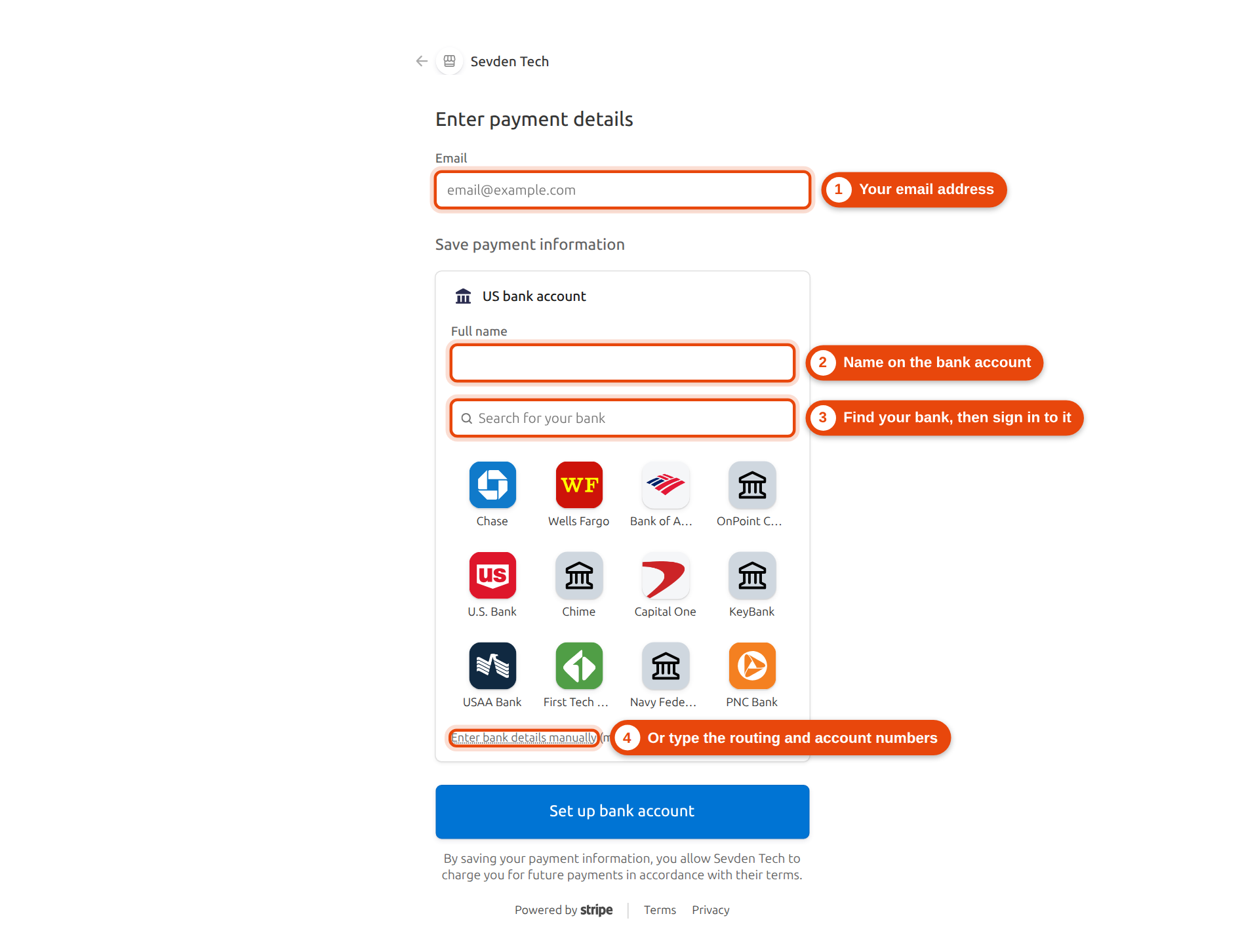
To add a bank account
A secure page opens for your bank details.
- Type your email address.
- Type the name on the bank account.
- Find your bank in the list or in the search box, and follow the steps to connect it.
- If you prefer, click Enter bank details manually and type your routing and account numbers. This way may take 1-2 business days.
Then click Set up bank account.
5Turn on Auto-Pay
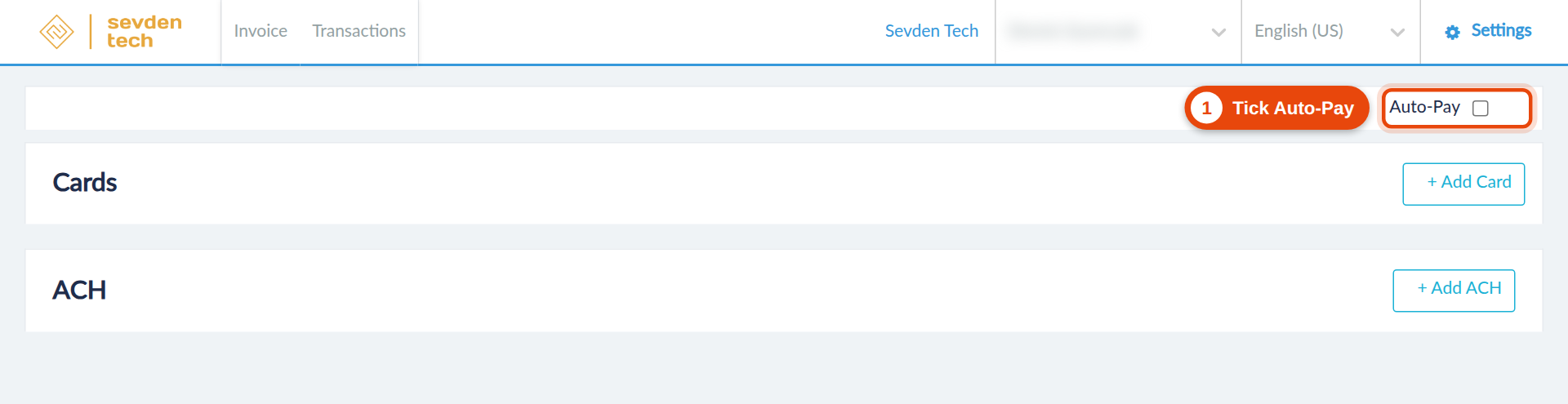
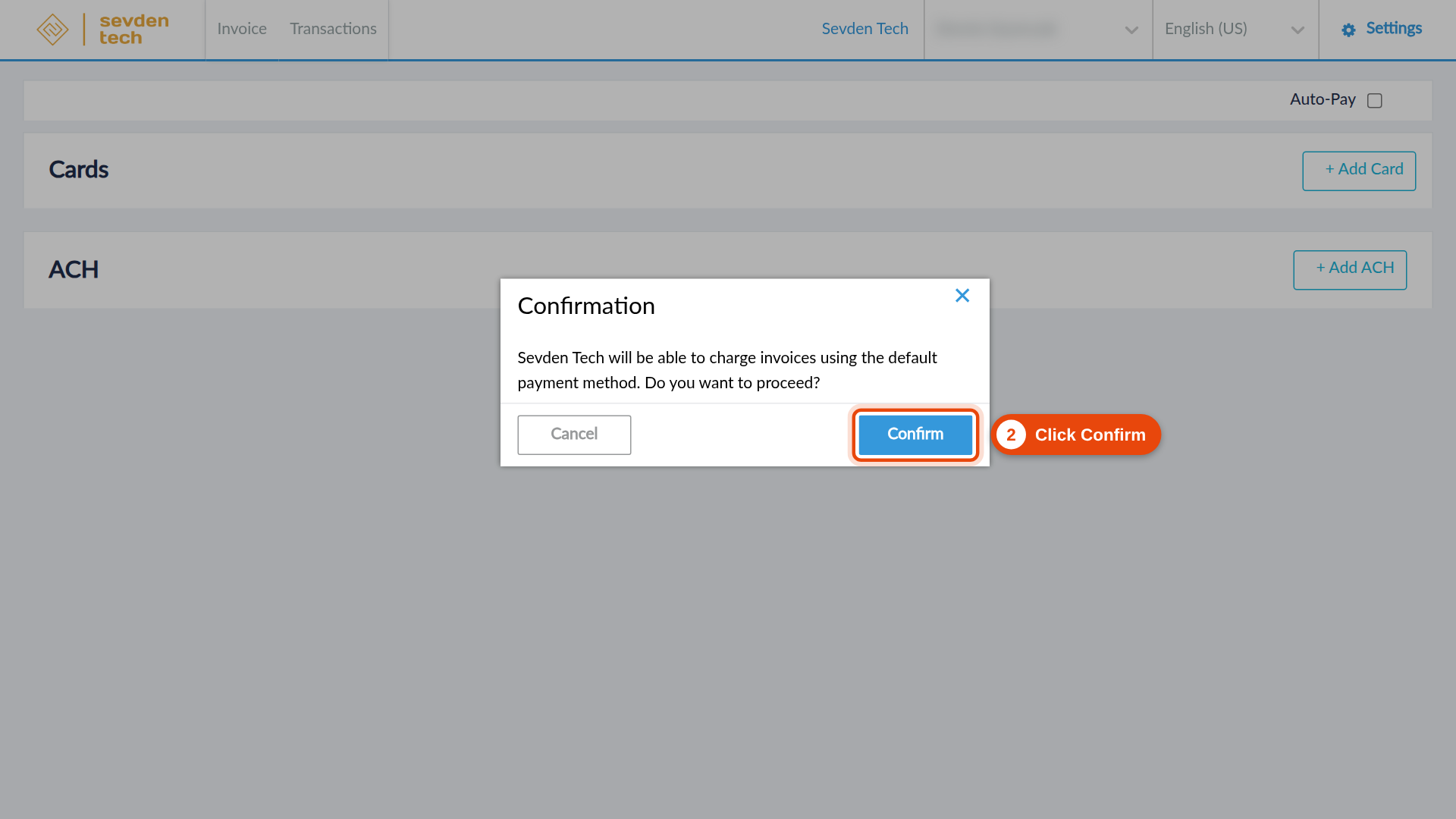
With Auto-Pay on, Sevden Tech charges your invoices to your default payment method. Add a card or bank account first (part 4).
- On the Payment Types screen, tick the Auto-Pay box.
- A confirmation box opens. Click Confirm.
6Pay an invoice
You can pay in two ways.
From your invoice email: each invoice email from us has a link for a one-time online payment. Click that link.
From the portal: open the Invoice tab, select the invoice, and click Pay.
7Forgot your password?
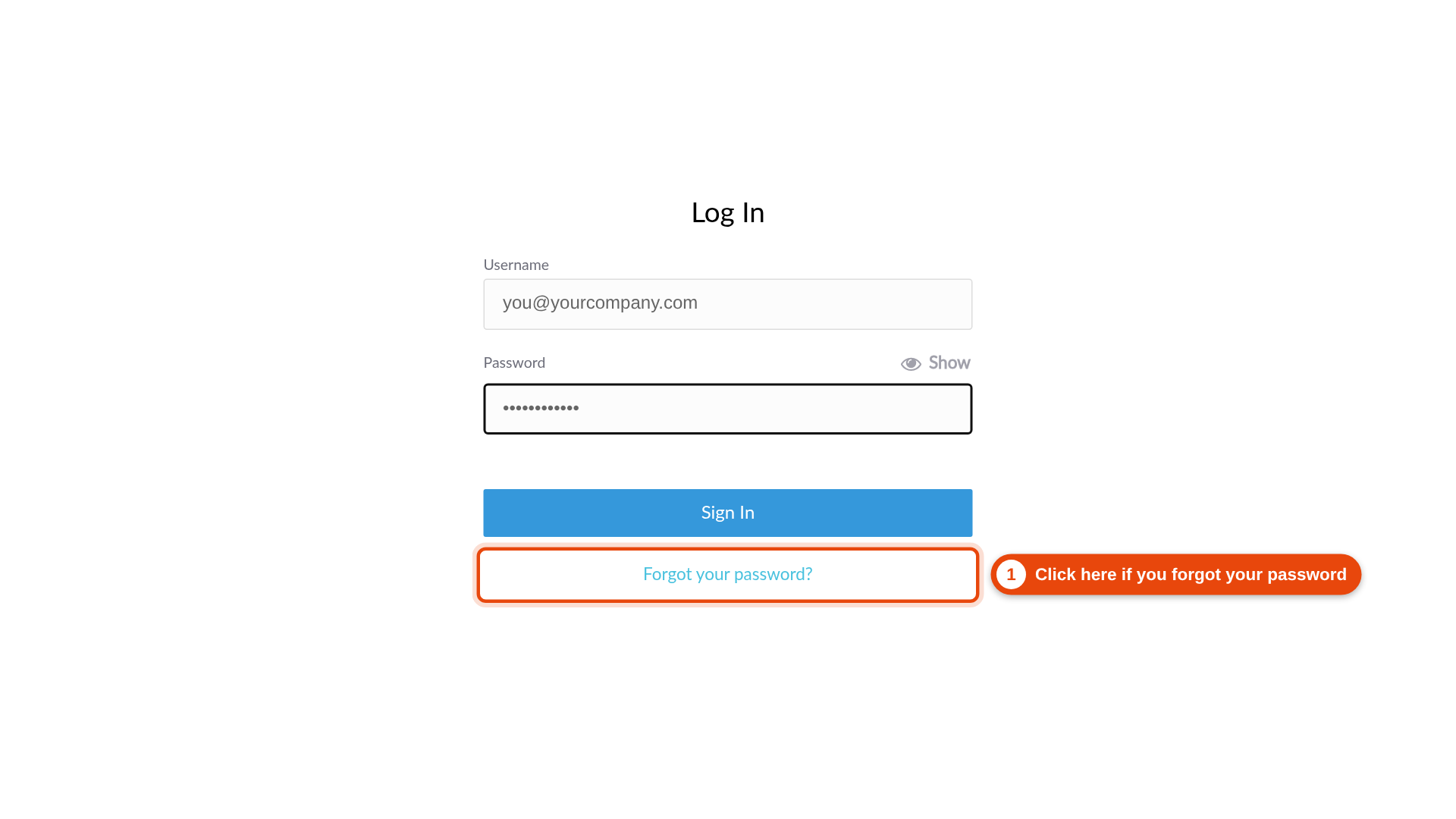
- On the Log In screen, click Forgot your password?
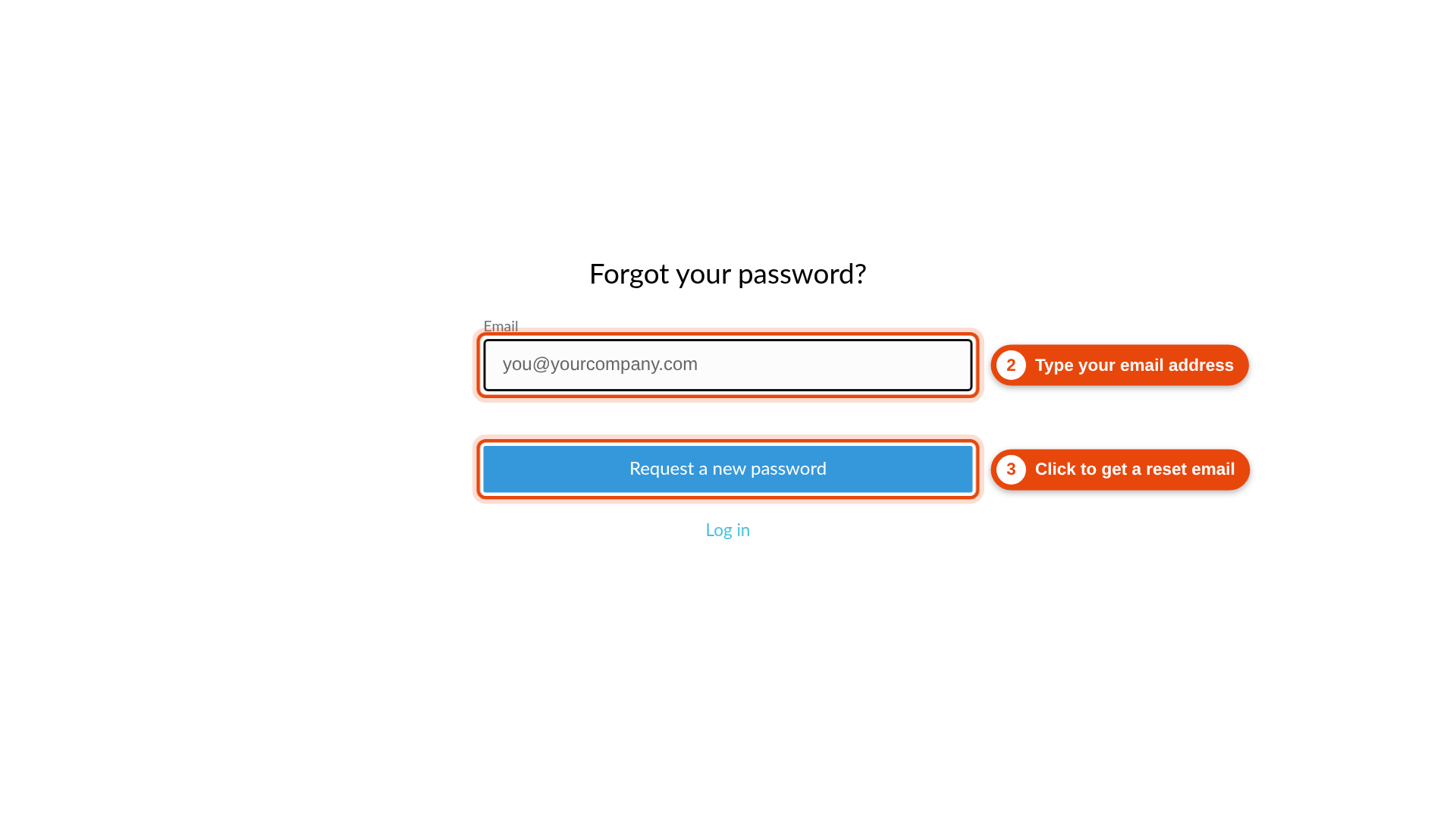
- Type your email address.
- Click Request a new password. We send you an email with a link to set a new password.
Need help?
We are happy to help. If you need a new invitation email, or you have a question about your invoice, email ar@sevden.com or call 702-291-9598.